Guide
How to use abatools
What each tool is for, when to reach for it, and how to run it. Then a step-by-step guide to learner profiles, so every response lands on the right learner’s dashboard.
Tool index
Every tool works as a guest with nothing saved. Turn a tool on for a learner and it saves their responses automatically.
Learner activities
Hand these to the learner during sessions.


For BCBAs & adults
Probes, observation, and assessments you run yourself.


| Tool | Best for | Data type | Saves |
|---|---|---|---|
| Learner activities | |||
| Flashcards | Naming pictures (tacts) in discrete trials | Trials · accuracy | every scored card |
| We & They | Pronoun discrimination: we, they, he, she | Trials · accuracy | the first touch on every trial |
| Find It | Listener responding: hear a word and tap the picture | Trials · accuracy | the first tap on every trial, and skips |
| Which One? | Listener responding by function, feature, and class | Trials · accuracy | the first tap on every trial, and skips |
| Match It | Visual matching to sample | Trials · accuracy | the first tap on every trial, and skips |
| Sort It | Sorting pictures by class, function, or feature | Trials · accuracy | the first bin chosen for every picture, and skips |
| Count & Compare | Early math: numerals 1–5, counting, matching numbers to amounts, more and less, and size | Trials · accuracy | the first tap on every trial, and skips |
| Word Match | Early reading: matching printed words to pictures, and letters | Trials · accuracy | the first tap on every trial, and skips |
| My Way | A functional request (mand), for example in FCT | Frequency · count | every button press |
| Toothbrushing | A 9-step toothbrushing chain (task analysis) | Task analysis · steps | each step as it’s completed |
| For BCBAs & adults | |||
| Observe | Interval recording of play, social behavior, and group skills | Intervals · percent of intervals | a yes or no for each behavior in every interval |
| Probe Day | Cold probes, mastery by probe, and maintenance across every trial tool | Probes · first trial each day | nothing new; it reads the first trial of each target each day |
| Milestones Tracker | Scoring and graphing 170 milestones across 16 domains | Assessment · scores | your score for each milestone |
| Barriers Checklist | Scoring 24 learning barriers from 0 to 4 | Assessment · scores | your score for each barrier |
| Transition Readiness | Scoring 18 transition areas, with tool data alongside | Assessment · scores | your score for each area |
Learner profiles: a complete tutorial
A learner profile saves one learner’s responses across every tool and every device on their team, without storing anything that identifies them.
Each learner gets a color-and-animal name such as “Blue Otter.” Names can’t be typed, so no personal details are ever stored. Keep track of who is who in your own records.
Each learner has a 12-character code such as K7QM-4XR2-P9TW. Anyone with the code can see and save that learner’s progress, so share it only with their BTs and BCBA.
Each device keeps its own list of learners. There’s no sign-in and no public list. Add a learner once with their code, then pick them from the learner menu.
A new learner starts with no tools. Turn on the ones they’re working on. Only those tools save, and each one gets a card on the dashboard.
Part 1 · Create a learner BCBA, once per learner
Open the learner menu
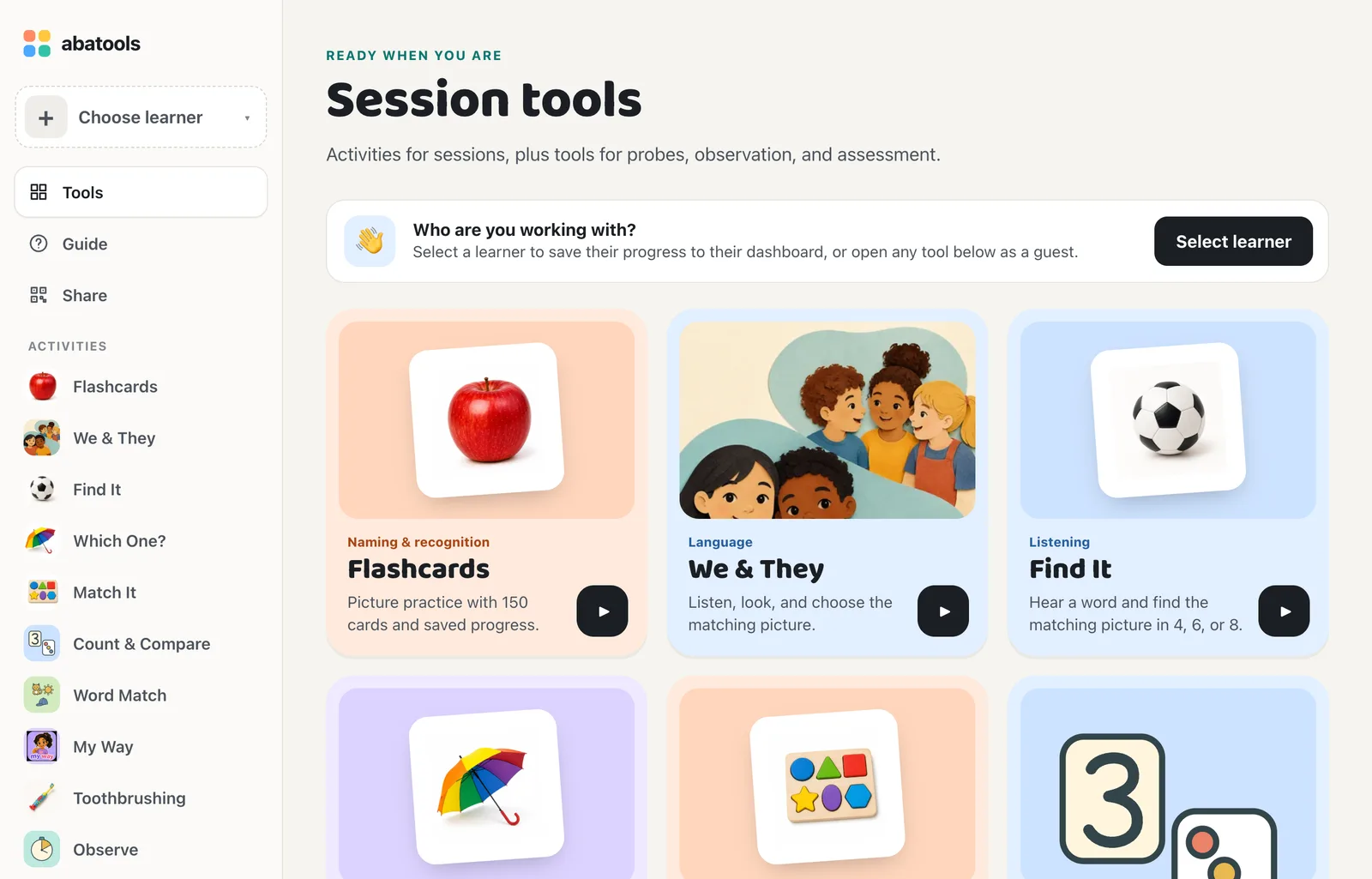
On the home page, tap Select learner. You can also use Choose learner at the top of the sidebar, or the learner button in any activity.
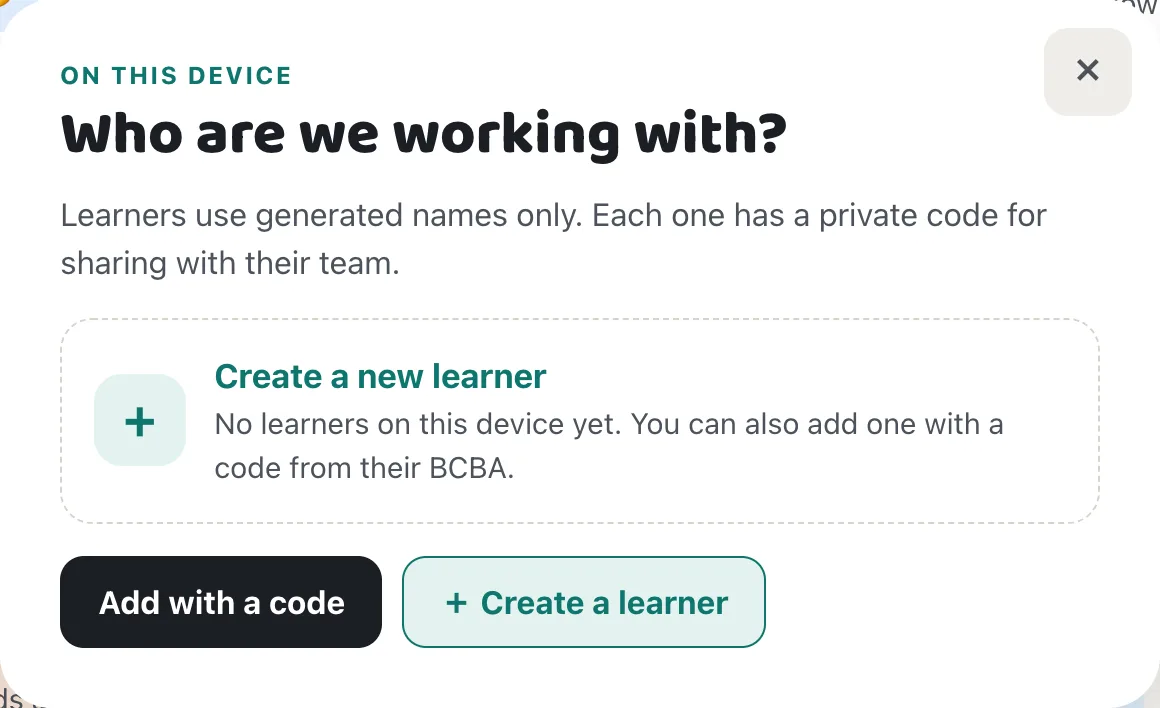
Choose “Create a new learner”
The first time, the menu opens on Enter a learner code. Tap Back to see the options, then Create a new learner. If you have a code from a BCBA, skip to Part 3.
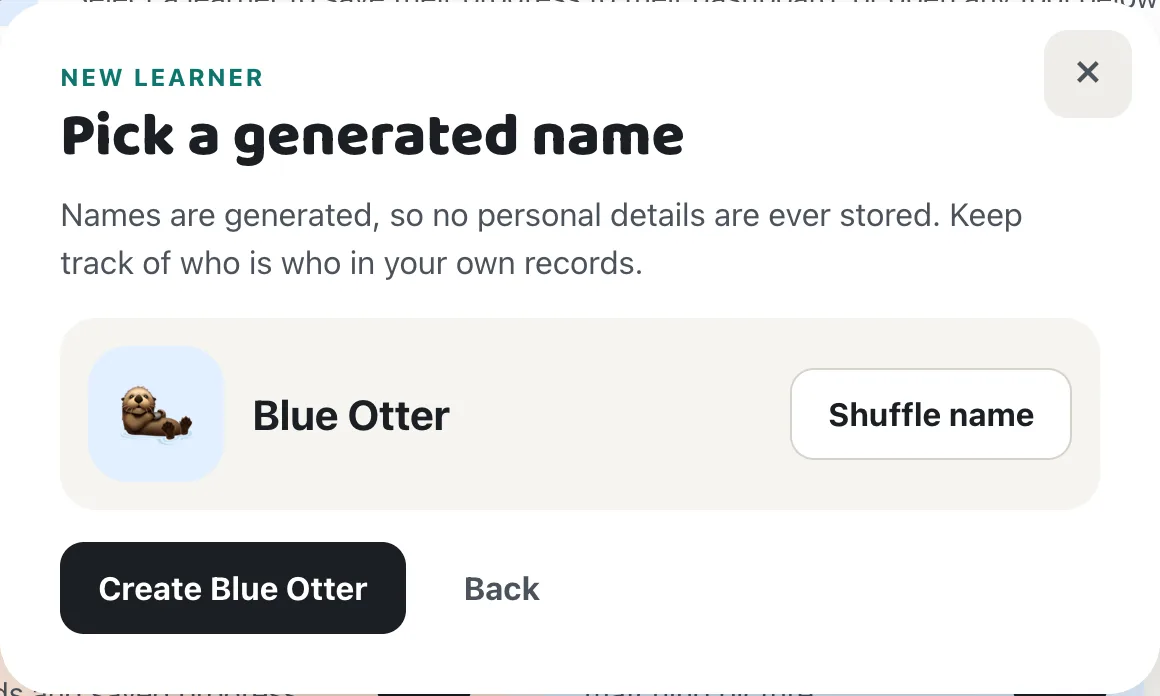
Pick a generated name
Tap Shuffle name until you like one, then Create. Write down which real learner this name belongs to in your own records, not in abatools.
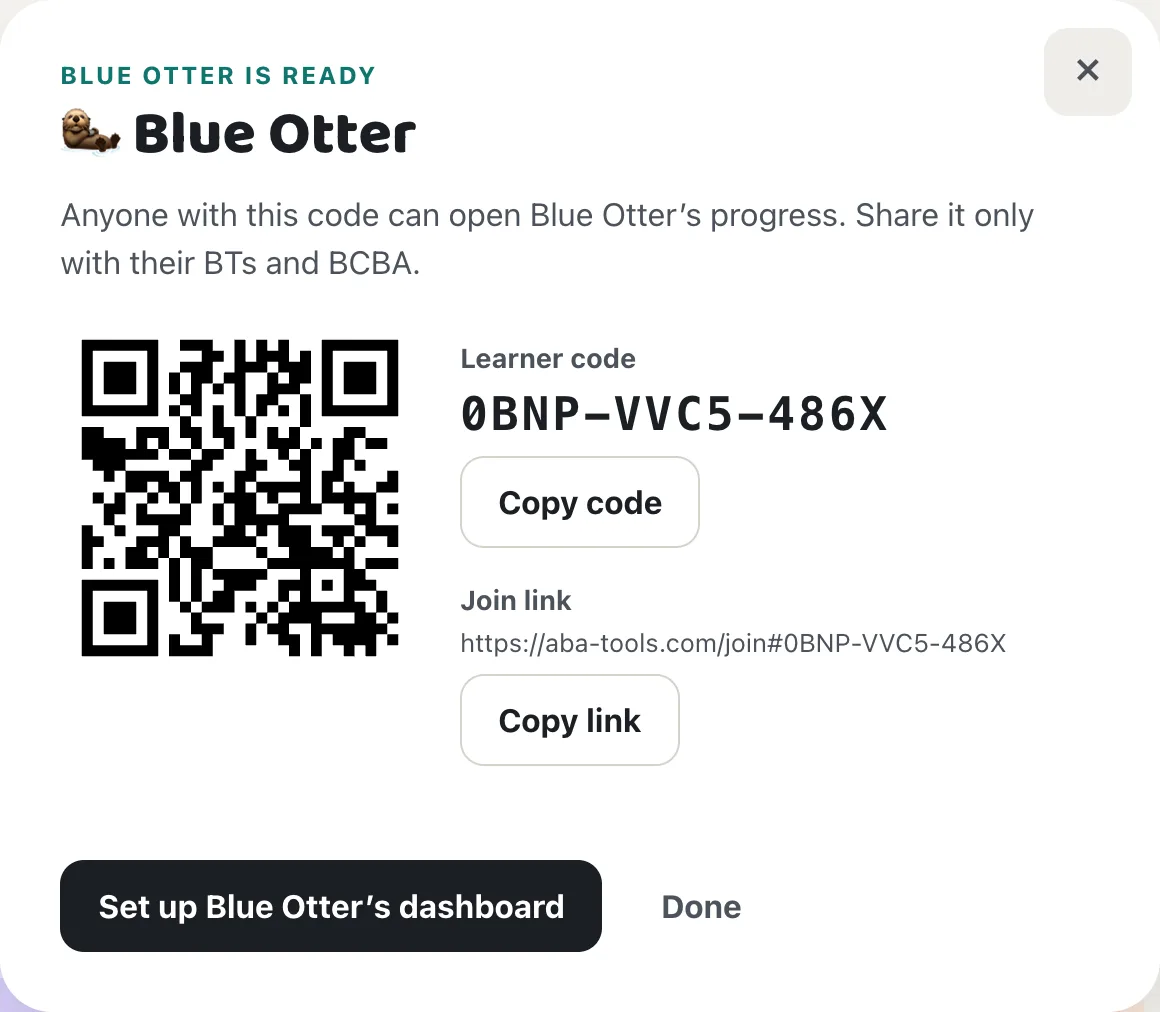
Save the code
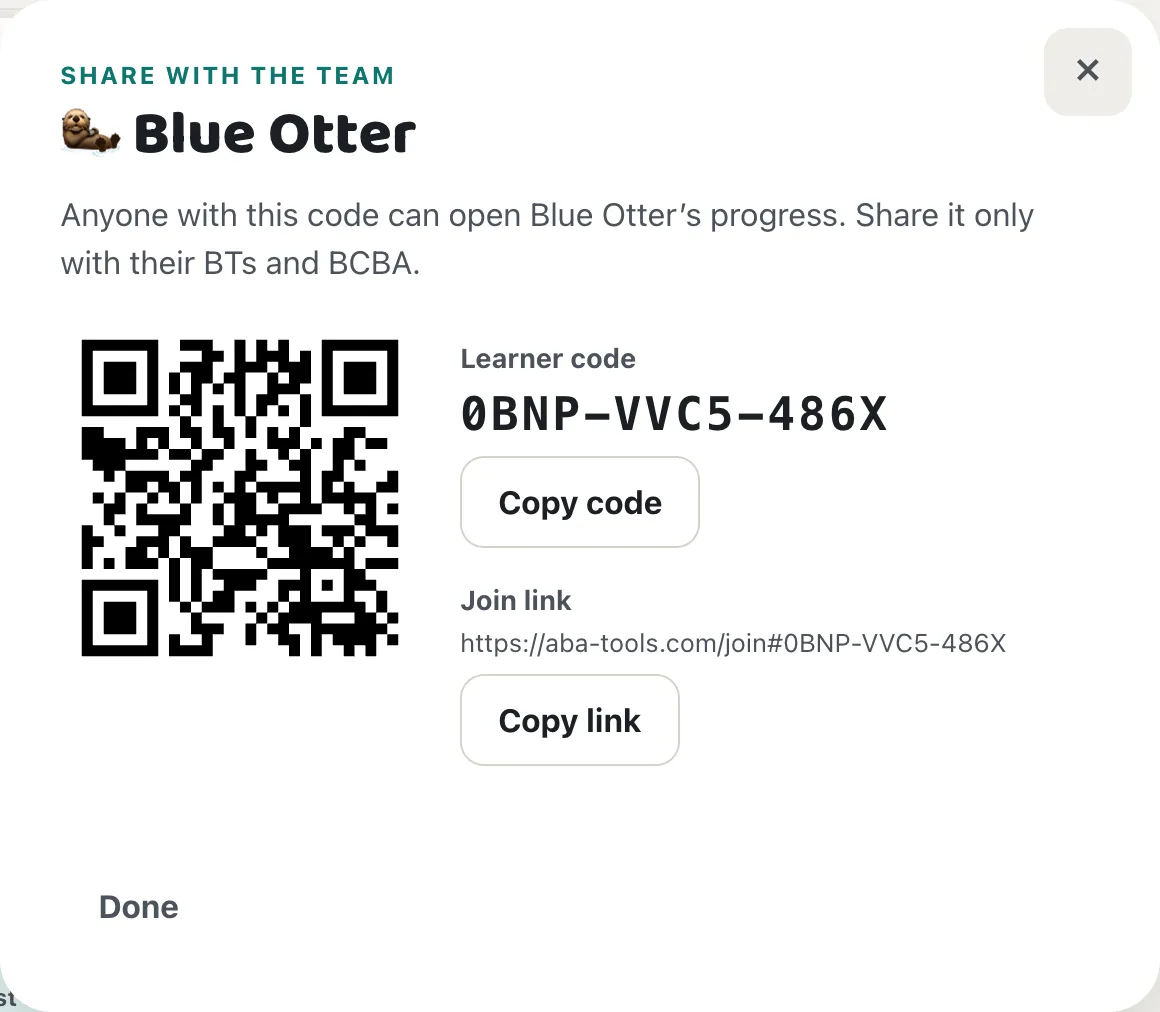
abatools shows the new learner’s code, join link, and QR code. You can come back to this screen at any time from Share, so there’s no need to copy it now. Tap Set up Blue Otter’s dashboard.
Part 2 · Choose their tools BCBA
Turn on the tools in their program
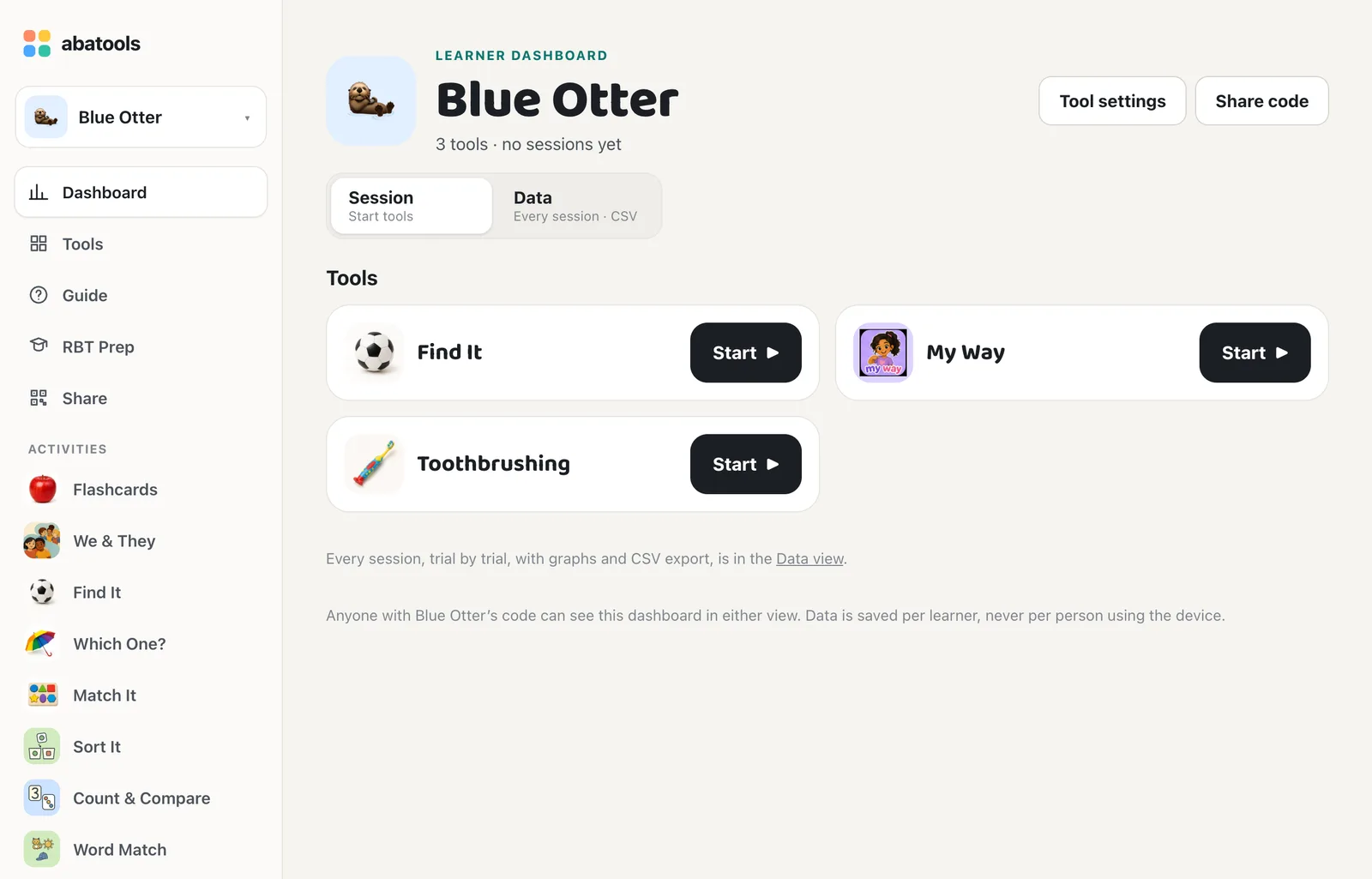
The new dashboard lists every tool with a switch. Each row says what the tool saves. Turn on only what this learner is working on.
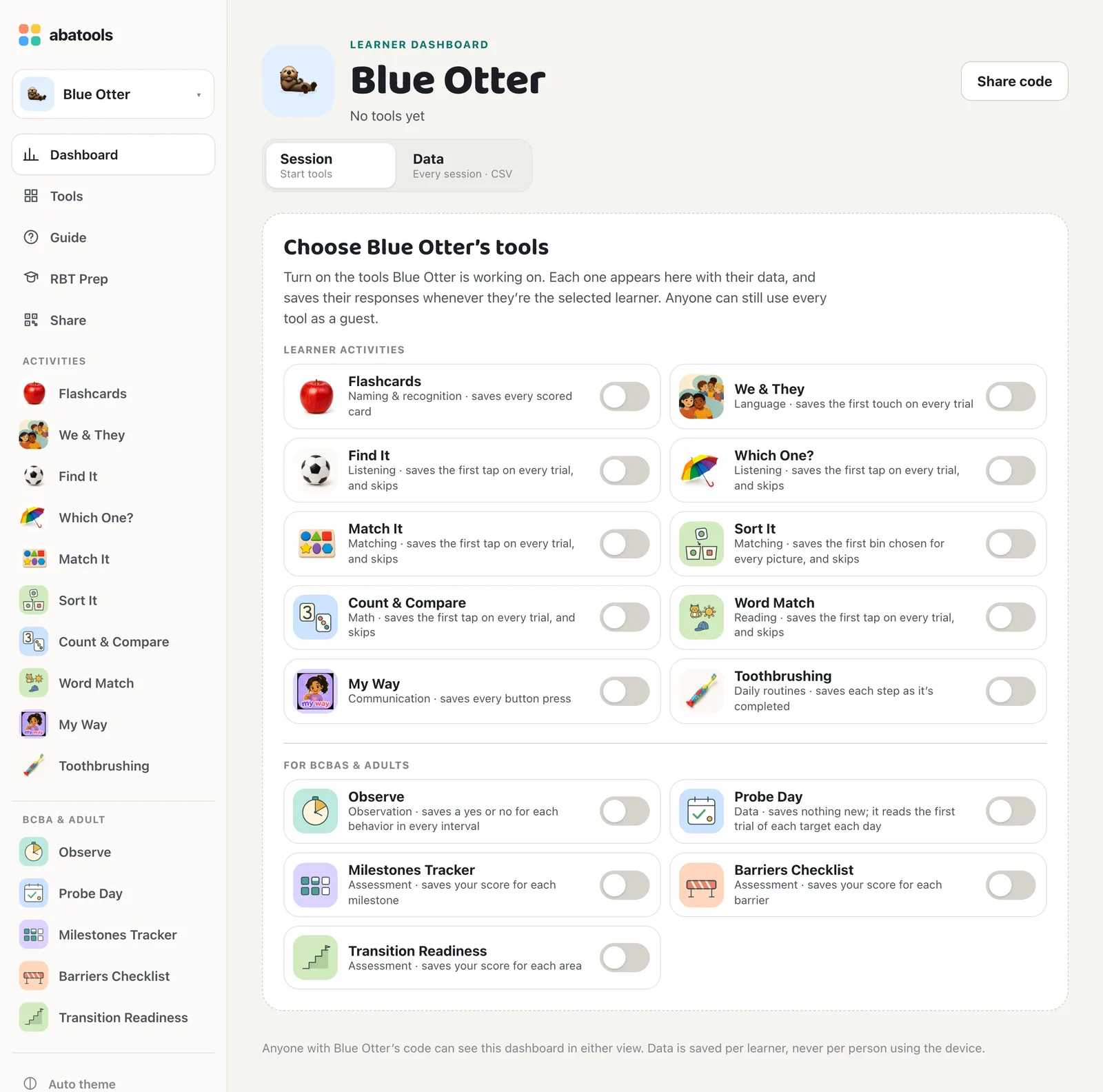
Each tool gets a Start button
Every tool that’s on appears in the Session view with a Start button. Its sessions appear in the Data view. To change tools or their options later, tap Tool settings at the top of either view. Turn tools on or off, and choose levels and other options under each enabled tool. These presets save automatically for this learner on every device.
Part 3 · Share with the team BCBA shares, BT adds
Open Share
From the dashboard, tap Share code. You can also tap Share next to the learner in the learner menu. There are three ways to hand it off:
- QR code: the BT scans it with their tablet’s camera.
- Join link: Copy link and send it privately to the BT.
- Code: read it aloud or write it down. Letters that look alike (I and 1, O and 0) are treated the same.
On the BT’s device: open the link or scan the QR code
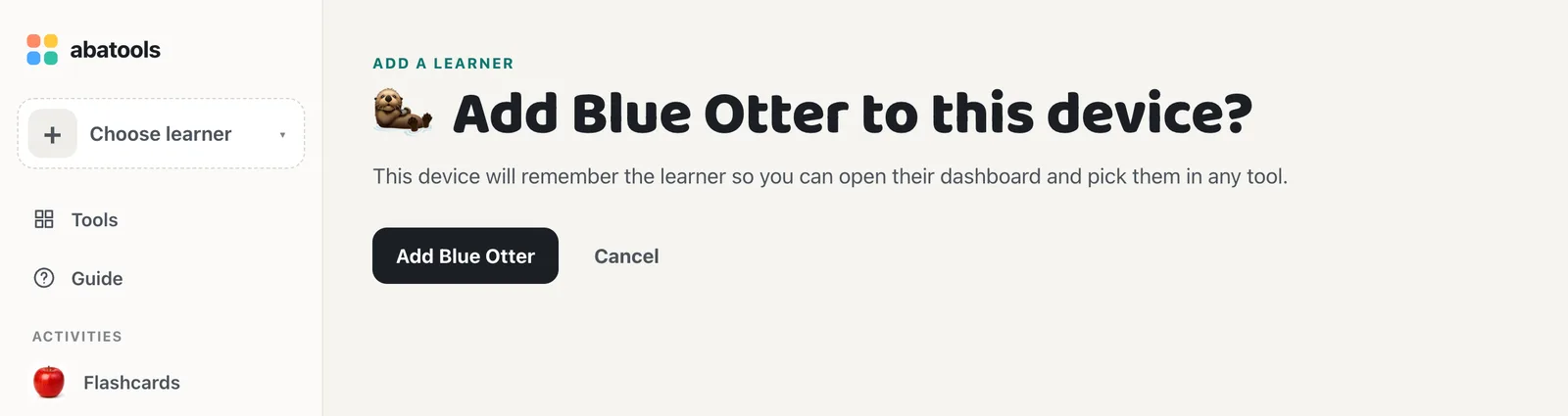
The join page names the learner and asks to add them. Tap Add, and their dashboard opens with the learner selected.
Or type the code
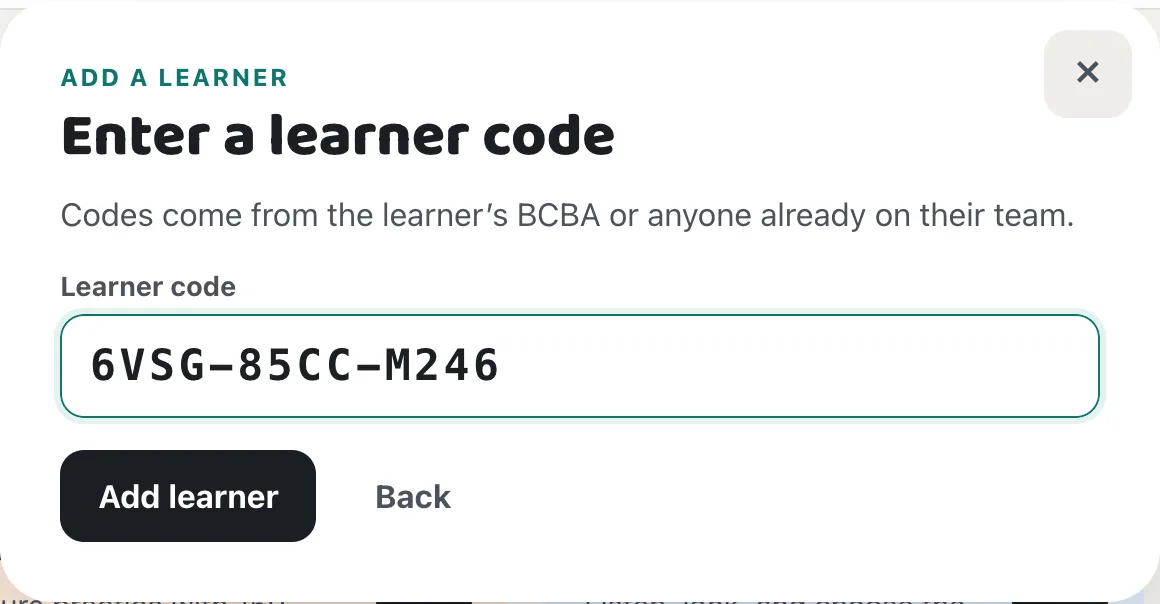
Open the learner menu, tap Add with a code, enter the 12 characters, and tap Add learner. Dashes and spaces are optional.
Part 4 · Run a session BT, every session
Select the learner
Tap the learner button in the sidebar or the activity bar, then tap the learner’s name. It’s highlighted when selected. No learner switches back to guest mode.
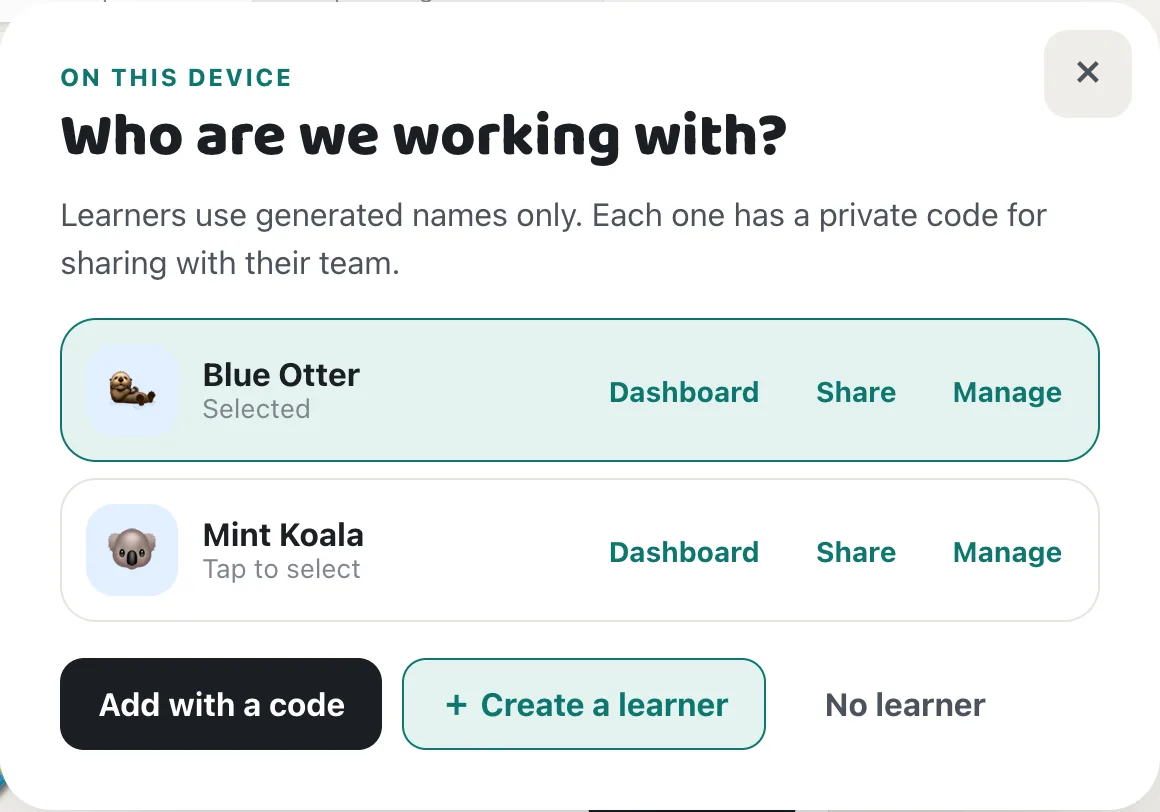
Each browser tab keeps its own selected learner, so two tabs can run two learners side by side. A new tab starts with the last learner you picked.
Start the tool and check the saving status
Tap Start on a dashboard card, or open the tool from the sidebar. Tools with levels or modes open on a setup screen: choose one, then tap Play. Before the first trial, check the label next to the learner button:
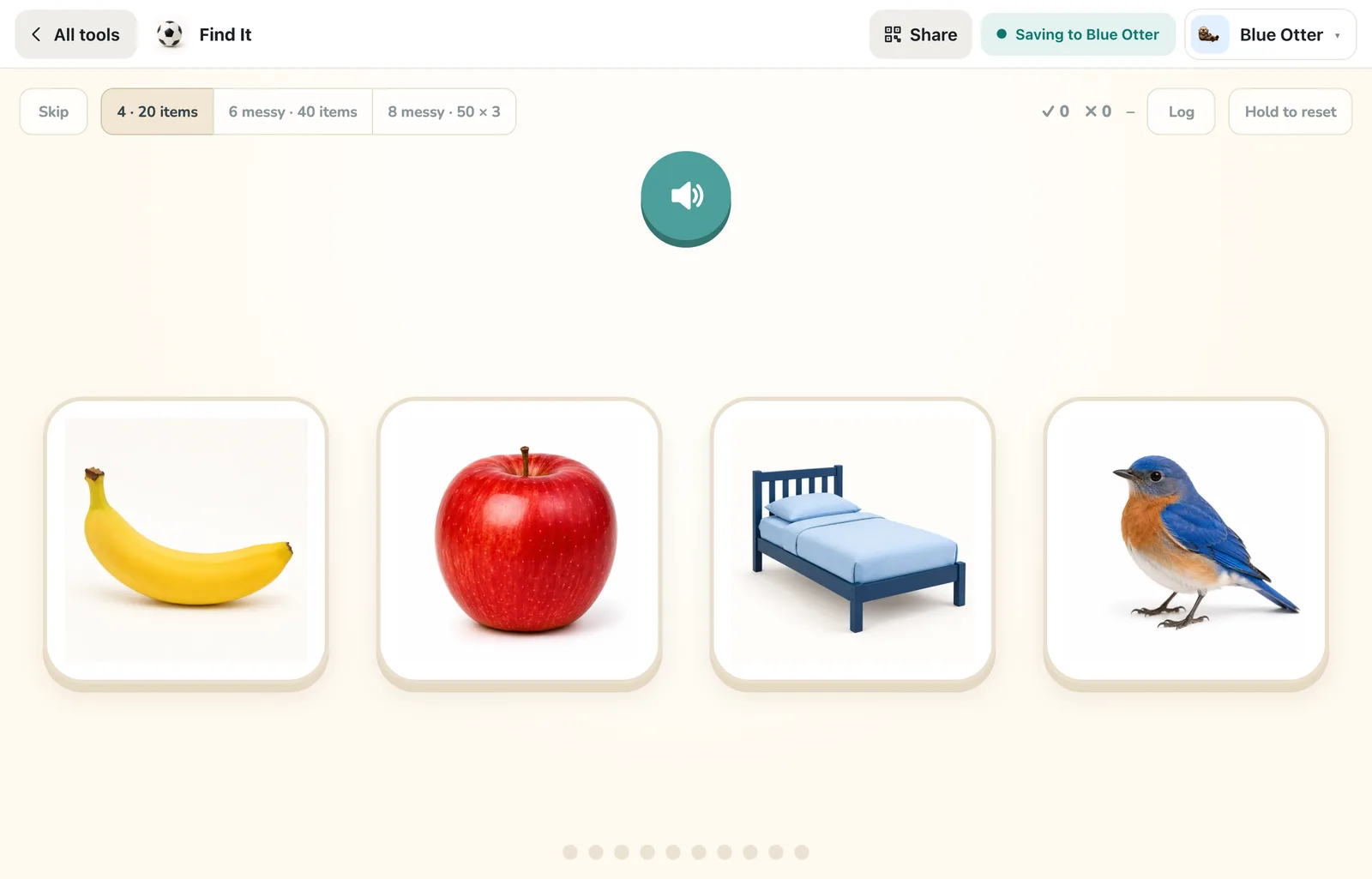
Saving to Blue Otter: responses are being saved. 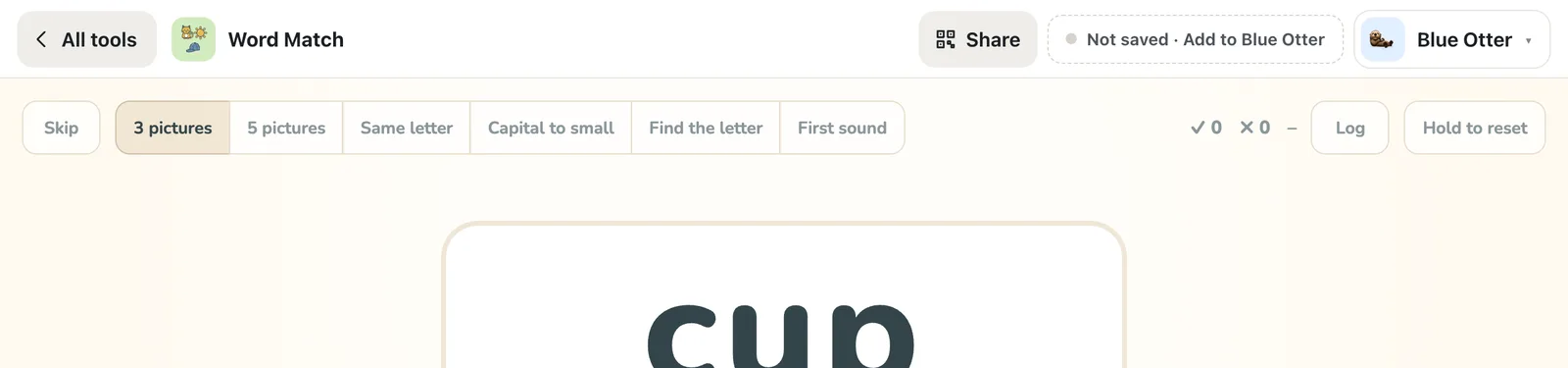
Not saved · Add to Blue Otter: this tool is off for the selected learner. Tap it to turn the tool on and start saving. 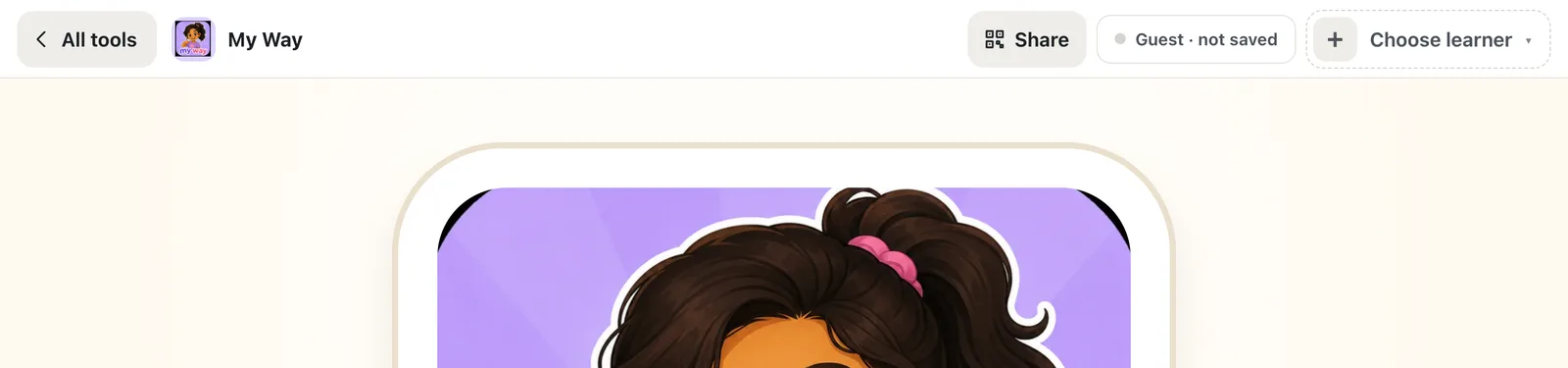
Guest · not saved: no learner is selected. Everything works, and nothing is sent. Run the session as usual
Responses save in the background. If the connection drops, they wait on the device and save when it’s back. While they wait, the label shows a count such as “3 waiting to save.” Nothing is lost or counted twice.
A session ends when you reset the tool, switch learners, tap Play on a setup screen, or after 30 minutes idle.
Part 5 · Read the dashboard BCBA and BT
Session view, for running sessions
Tap Dashboard in the sidebar, Open dashboard on the home page, or Dashboard in the learner menu. The dashboard has two views, switched at the top. Session is for BTs: a big Start button for each tool, and nothing else. There are no stats, graphs, or settings to get in the way.
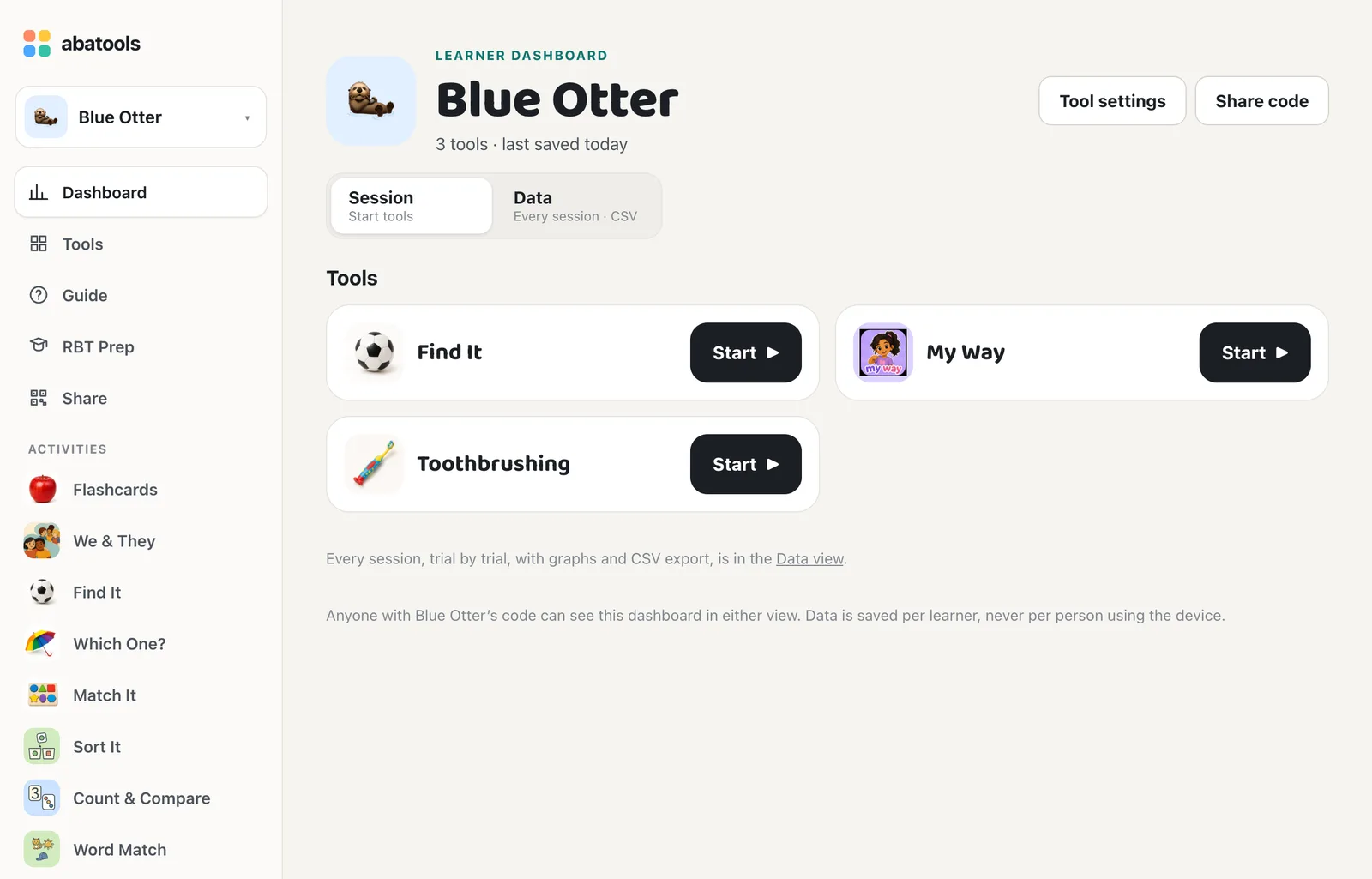
Each device remembers which view it used last, and opens that one.
Data view: every session
Data lists every session, newest first and grouped by day, with the time, tool, level or mode, and result, such as 8/10 · 80%. Use the menu at the top to show one tool. Tap any session to open it.
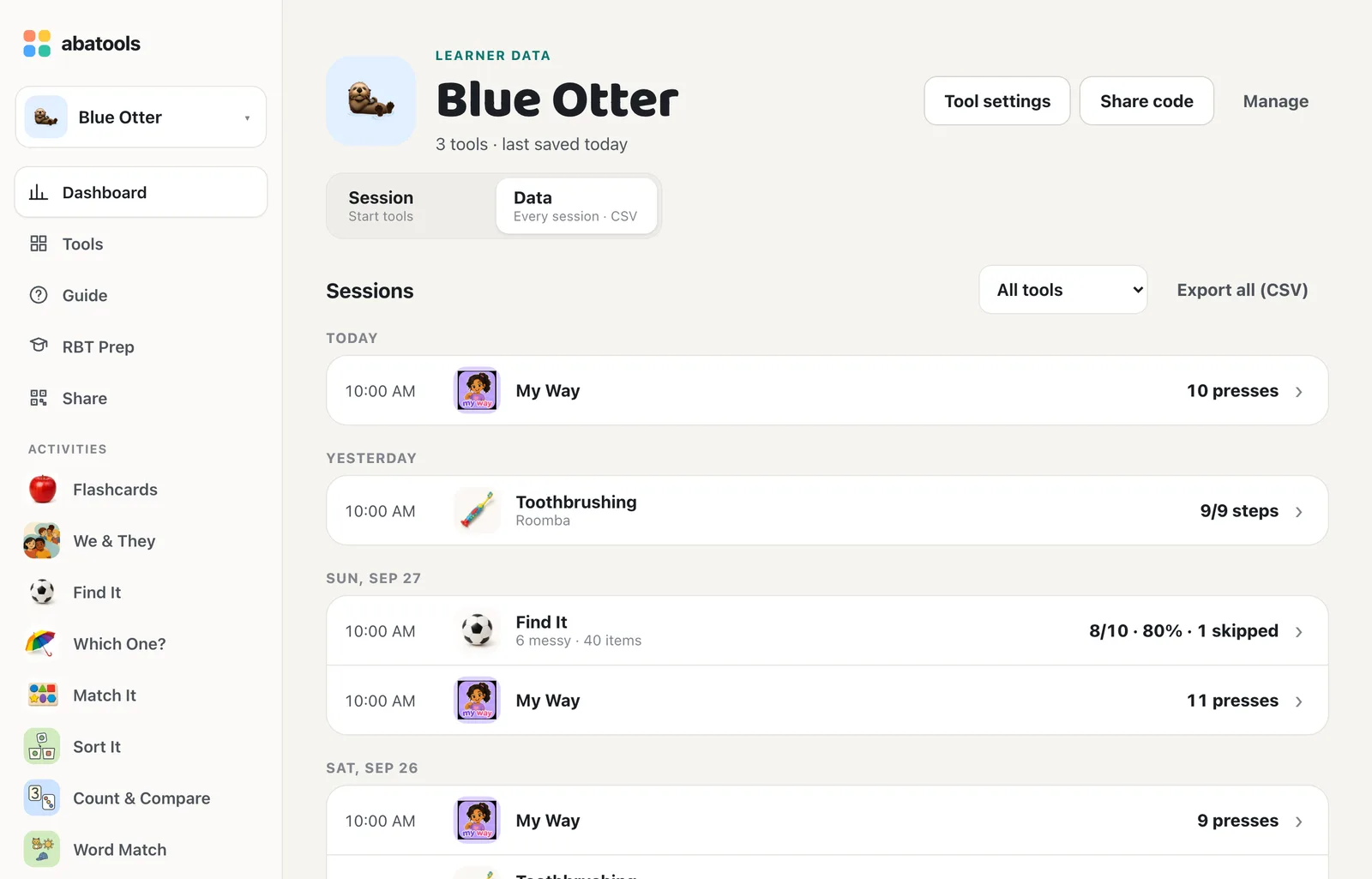
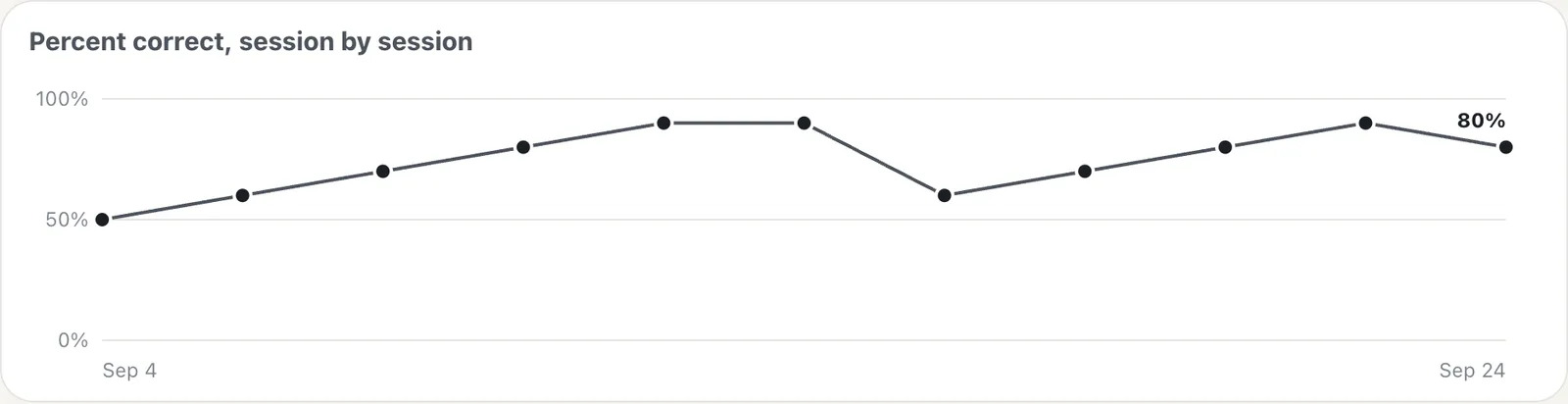
With one tool shown, a simple graph appears above the list: one dot per session, oldest on the left. Tap a dot to open that session.
A session, trial by trial
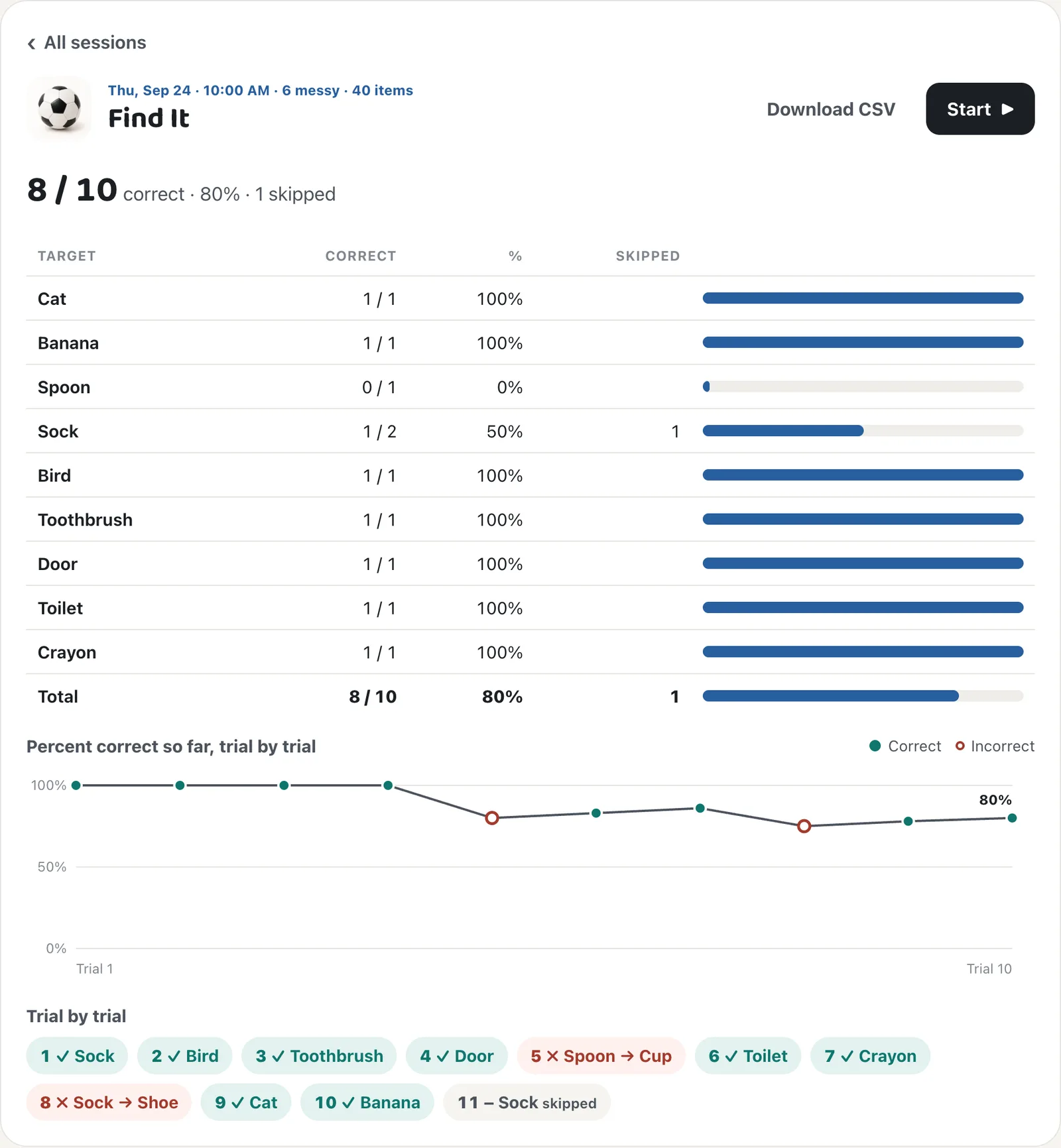
Each session opens on its own page, laid out like the data at the end of a We & They round:
- By target: correct out of tried, the percent, and skips for each target, with a Total row.
- Graph: the percent correct so far after each trial. Filled dots are correct, and hollow dots are incorrect.
- Trial by trial: every trial in order, with ✓ or ✗. An incorrect trial shows what was chosen instead, such as Spoon → Cup.
Toothbrushing lists each step in order, with the time it was done. My Way lists each press. Observe shows each behavior’s percent of intervals, then every interval in a grid.
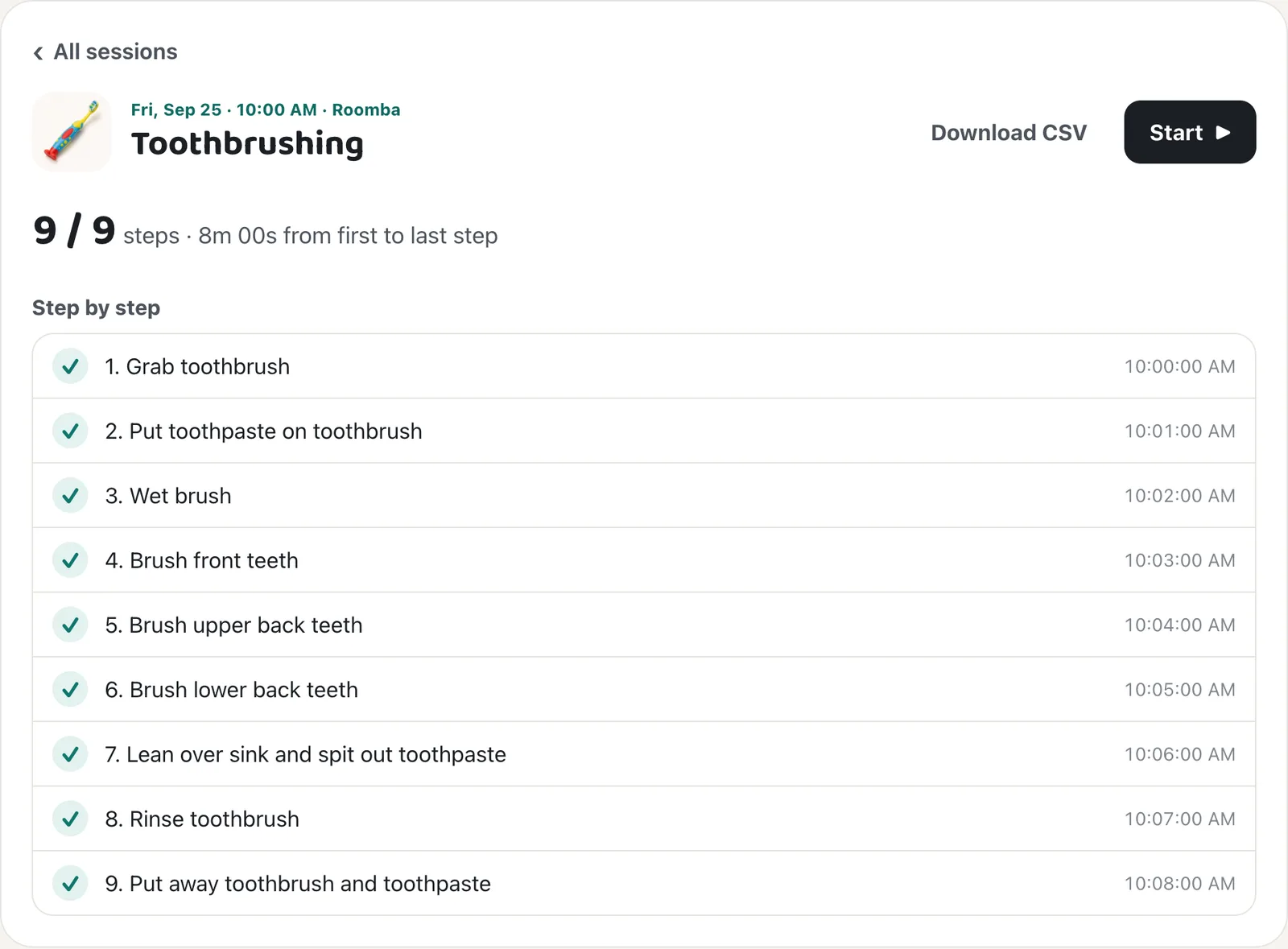
Export the raw data
In the Data view, Export all (CSV) downloads every response for every tool, with a
toolcolumn first. With one tool shown, Export CSV downloads that tool only. On a session’s page, Download CSV saves just that session. Every file has the columnsdate, time, session, condition, event, target, response, correct, detail, and opens in Excel, Numbers, or Google Sheets.
Part 6 · Manage a learner BCBA
Add or remove tools
Tap Tool settings at the top of the dashboard’s Session or Data view. Turning a tool off removes it from the dashboard and stops saving. Its data is kept and comes back if you turn it on again. The options under each enabled tool set this learner’s presets; choose No preset to use the device’s last choice.
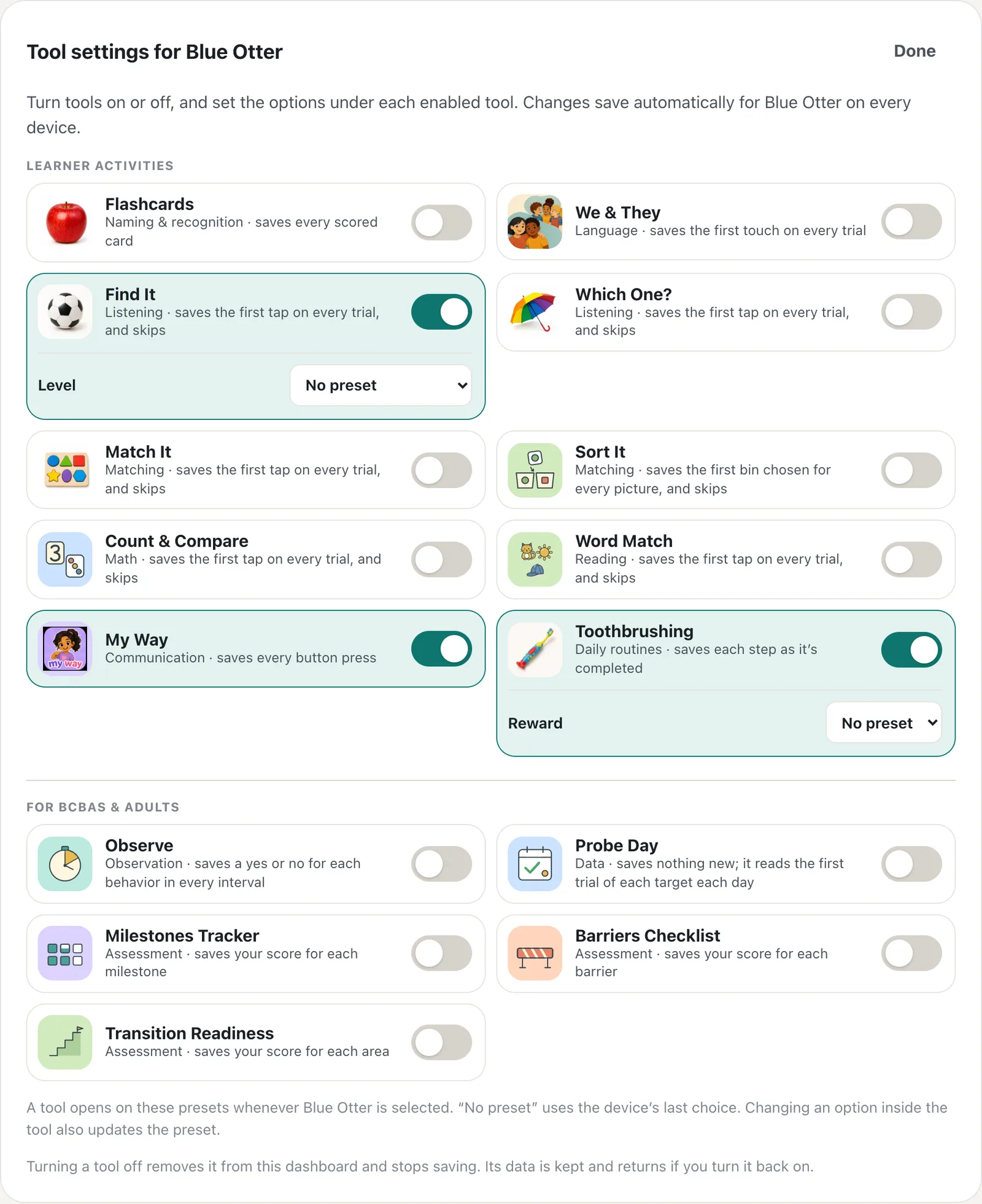
Preset each tool’s settings
In the same panel, every tool that’s on and has setup choices, such as a level, shows them under its switch. Pick the learner’s level there, and the tool opens on it whenever this learner is selected, on any device. Leave a choice on No preset to use whatever was last picked on the device.
Changing a setting inside a tool while the learner is selected also updates their preset, so the next session picks up where this one left off. As a guest, tools remember the last choice on the device, as before.
Rename, reset the code, or delete
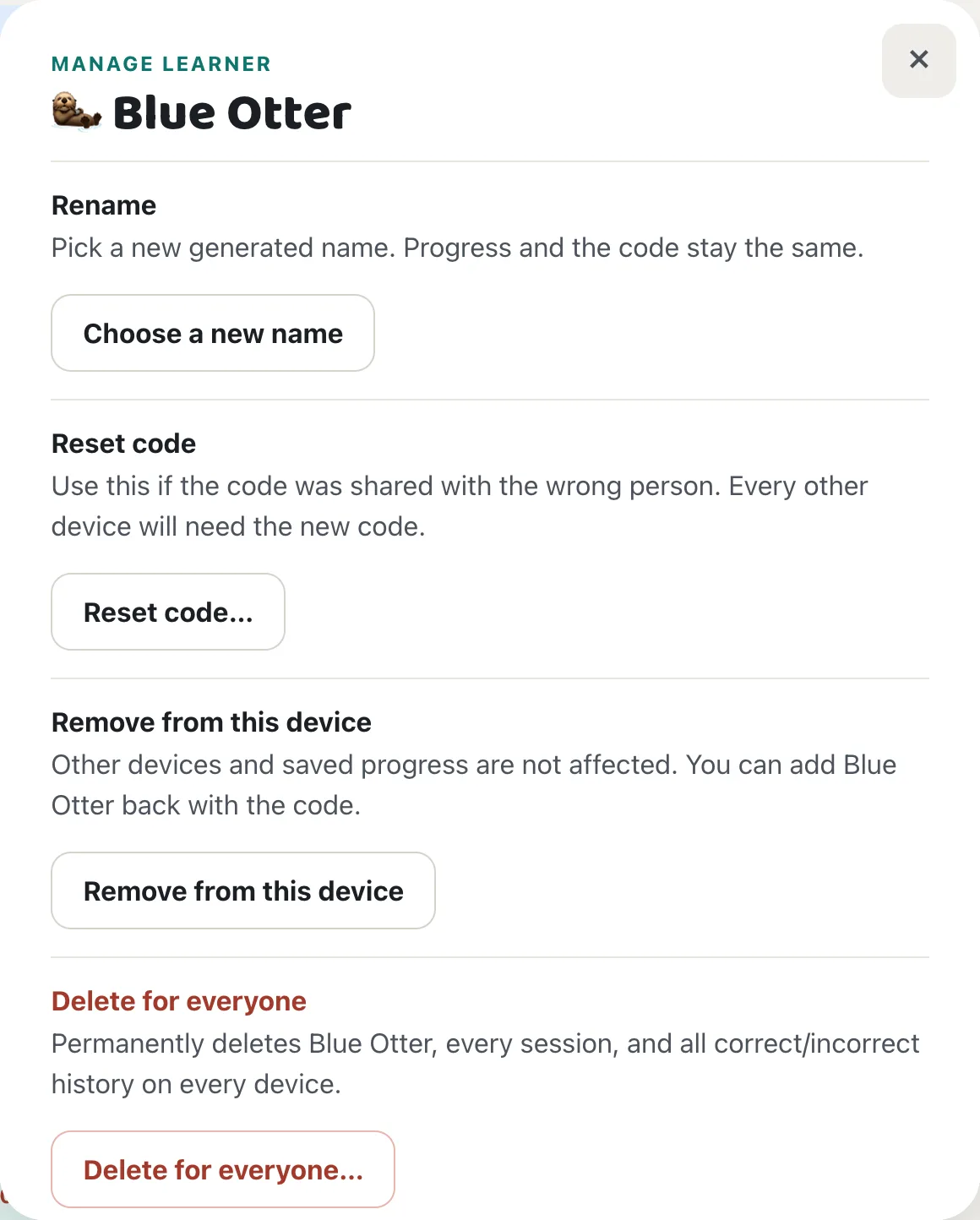
Tap Manage in the dashboard’s Data view or in the learner menu.
- Rename: pick a new generated name. Progress and the code stay the same.
- Reset code: use this if the code went to the wrong person. Every other device is cut off until it gets the new code from Share.
- Remove from this device: forgets the learner here only. Their data and other devices aren’t affected.
- Delete for everyone: permanently deletes the learner and all their data on every device. You must type the name to confirm.
Questions
The learner menu says “Code reset: ask your BCBA for the new code.”
Someone reset this learner’s code. Get the new code or link from their BCBA, then tap Enter new code next to the learner. Their data is all still there.
I ran a session but nothing is on the dashboard.
Check the label in the activity bar. “Guest” means no learner was selected, and “Not saved” means the tool was off for that learner. Guest responses are never sent, so they can’t be recovered. If it said “waiting to save,” the responses are still on that device. Open abatools on it once it’s back online and they’ll save.
How do I open the same page on another device?
Tap Share in the activity bar or the sidebar. Scan the QR code with the other device’s camera, or copy, send, or print the link. When a learner is selected, the link can include them: the other device adds them with their private code and then opens the same page. Choose As a guest to share only the page. A dashboard is always shared with its learner.
Can I use dark mode?
Yes. On a computer, abatools follows your system’s light or dark setting. Phones and iPads stay light so the tools look the same for every learner. To change it on this device, tap Theme at the bottom of the sidebar (the moon or sun icon at the top on a phone). It cycles through Auto, Dark, and Light.
Two BTs use the same iPad. Whose data is it?
Data belongs to the learner, not the adult. Whoever is selected in the learner menu gets the responses, no matter who is holding the device.
Can I use a tool without a learner?
Yes. Every tool works fully as a guest, and nothing is saved.
Where do the milestone, barrier, and transition scores come from?
From you. Milestones Tracker, Barriers Checklist, and Transition Readiness are scoring grids for 170 milestones, 24 barriers, and 18 transition areas. They don’t include protocol text or scoring criteria, so score each item from your own copy of the protocol. abatools is not affiliated with AVB Press or the VB-MAPP publishers.
What exactly is stored?
Only the generated name, the tools that are on, and choices from each tool’s own lists: targets, pictures chosen, conditions, and steps. Nothing can be typed in. The server keeps a scrambled (hashed) copy of each code, never the code itself.
A code was shared with the wrong person.
Open Manage and tap Reset code. The old code stops working at once. Then share the new one with the team.